Password Managers for Beginners: How to Start Without Losing Access
A practical beginner's guide to setting up a password manager, choosing a master password you won't...

Ask anyone what they'd grab in a fire and the answer tends to be the same: the photos. That single fact explains why the cloud-versus-external-drive question matters more than it first appears. One option survives a house fire but depends on a company, a payment method, and an internet connection. The other works perfectly offline but usually sits in the same room as the disaster it's supposed to protect you from.
The useful answer isn't "pick one." It's understanding what each option actually defends against, what it costs you in money and attention, and where real photo libraries tend to get lost.
Cloud storage is fundamentally about geography. Your photos exist on servers somewhere else, which is why a fire, a flood, a burglary, or a laptop dropped in a lake doesn't touch them. If your phone ends up in a river on holiday, the good shots were probably uploaded before you got back to the hotel. That offsite-by-default property is the strongest argument for the cloud.
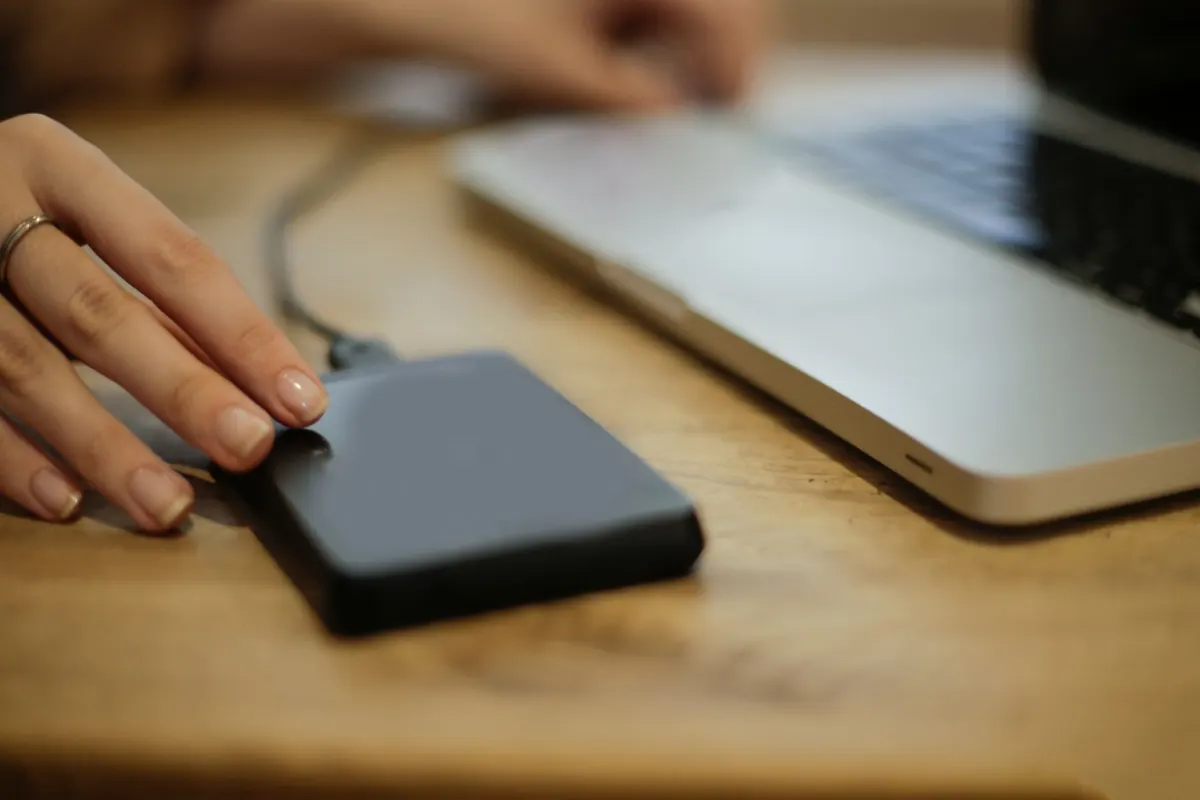
An external drive is about independence. It keeps working when your internet doesn't, when a card payment fails, when an account gets locked, or when you want to move 200 GB without waiting overnight. It's also the only option where nobody else's business decision — a price rise, a shutdown, a change to the terms of service — can strand your files.
Neither one covers everything. A drive sitting beside your computer won't save you from a burst pipe, and a cloud bucket won't help if you lose the account.
Comparing a one-time drive purchase against a monthly subscription is the wrong frame. Compare total cost over five to ten years, including replacements and your own time.
An external drive costs money once, but it isn't a lifetime purchase. Warranties are measured in a few years, not decades, and mechanical drives eventually fail. To be properly protected you need at least two drives, one of which should live somewhere else. Add the routine of plugging them in, checking them, and replacing them, and you're paying in attention as well as cash.
Cloud storage is a recurring bill that never ends, and that's the catch. If you stop paying, the safety net disappears; most services keep an account readable for a while, but you shouldn't count on any particular grace period. Capacity tiers and limits change often, so read what a plan actually includes before committing, especially if you shoot RAW or video.
The rough trade-off: for a modest library, cloud plans are usually cheaper and simpler. Past a terabyte or two of camera files, hardware often becomes better value — provided you're disciplined enough to rotate and check drives rather than buying them and hoping.
With a local drive, privacy is a physical property. Nobody sees your photos unless they have the drive and the password. The catch is that most people never turn encryption on, so a lost or stolen drive becomes a readable archive. Full-disk encryption built into your operating system takes minutes to enable. Do it before the drive leaves your desk, not after.
Cloud providers typically encrypt files in transit and at rest, but in most cases the provider holds the keys. That means automated systems — and in narrow circumstances, staff — can technically access your data, and most large services scan uploaded content for prohibited material. If that bothers you, look for a provider offering end-to-end or client-side encryption, where the key never leaves your devices. Expect trade-offs: server-side search, web previews, and easy album sharing often stop working with fully encrypted storage.
A reasonable middle ground is to sync the everyday family photos and keep anything genuinely sensitive in an encrypted container that you back up separately. Check the provider's current policy yourself rather than trusting a summary, including any clause about inactive accounts.
Restoring from an external drive is limited by the drive and the cable, not your broadband. A modern USB drive moves a large library in hours rather than days, and pulling a single folder takes seconds. That matters during a crisis: when a laptop dies the night before a deadline, the local copy is the difference between an hour of work and a weekend of waiting.
Cloud restores are limited by your download speed. Pulling a terabyte down a typical home connection can take days, and if the disaster also took out your router, you'll be doing it somewhere else. Some services will ship your data on a physical drive, but that's usually a paid extra and still slower than walking to a shelf.
Where the cloud wins decisively is the small stuff: getting one photo onto a new phone, sharing an album with relatives, or recovering an image while travelling. Those moments are frequent, and they're why most people end up using both.
Both options can fail in the same underrated way: they can faithfully preserve a copy of a mistake.
The standard that has outlived decades of storage changes is 3-2-1: three copies of anything important, on two different types of media, with one copy offsite. A laptop, an external drive, and a cloud account satisfy it. Two drives in the same room do not.
Every drive is a consumable. Desktop external drives often contain the same mechanisms as internal ones, wrapped in a plastic shell with modest cooling. Heat, being moved while spinning, and constant power cycling all shorten their lives. Treat five years as borrowed time and replace on a schedule rather than waiting for a click or a failed mount.
Cloud risk is administrative. An expired card, an email address you no longer control, a two-factor phone you've replaced — any of these can turn a working backup into a locked door. Save your recovery codes somewhere offline. Then think about formats: JPEGs and RAW files will stay readable for a long time, but the catalogue databases behind photo apps are far more fragile. Export your best images as ordinary files alongside any catalogue-based library, so you're never dependent on one program opening in ten years.
The safest place for your photos isn't the cloud or a drive. It's a boring routine: copies in more than one place, one of them somewhere else, verified often enough that nothing surprises you. The cloud handles the geography, the drive handles the independence, and your calendar handles the rest.
Photo: Andrea Piacquadio / Pexels
A practical beginner's guide to setting up a password manager, choosing a master password you won't...
Cold slows the chemistry inside lithium-ion cells, so your phone misreads its own charge and shuts down...
Budget active noise cancellation handles train rumble and bus drone surprisingly well, but comfort, call...